
Logs
The Logs page allows you to view detailed conversation logs, containing all user / agent utterances, as well as tool calls, post call analysis results and other internal events. You can view logs on the screen, in a chat widget, or download them to your computer in JSON format.
To view your logs:
-
In the Navigation menu pane, select AI Agents, and then click Logs.
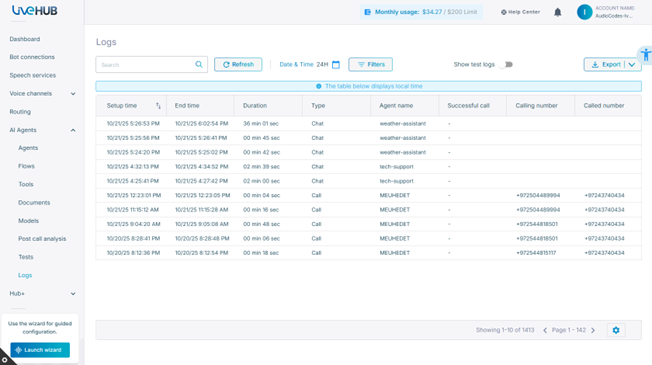
The table provides the following information:
Column
Description
Setup Time
Date and time when the conversation started.
End Time
Date and time when the conversation ended.
Duration
Total duration of the conversation.
Type
Conversation type: Chat or Call.
Agent Name
Name of the agent that started conversation.
Calling Number
Phone number of the calling party (caller) that initiated the call.
Called Number
Phone number of the called party (callee).
-
Use the search box to find specific conversations. (up to a period of 3 days)
-
Click Date & Time to view conversations in a specific time period; a calendar appears.
-
Select the date and time period of the conversations you want to view. You can choose any one of the following:
-
24 hours
-
7 days
-
30 days
-
Custom
-
-
You can also select a specific time range. After you have selected the specific date and time period, click Apply.
-
-
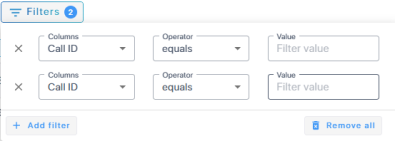
Click Filters to filter your search for conversations records containing specific values.

-
From the 'Columns' drop-down list, select the column name you want to search on.
-
From the 'Operator' drop-down list, select the operator value.
-
In the 'Value' field, enter the value you are searching for.
-
Click Add filter to apply more filters.
-
-
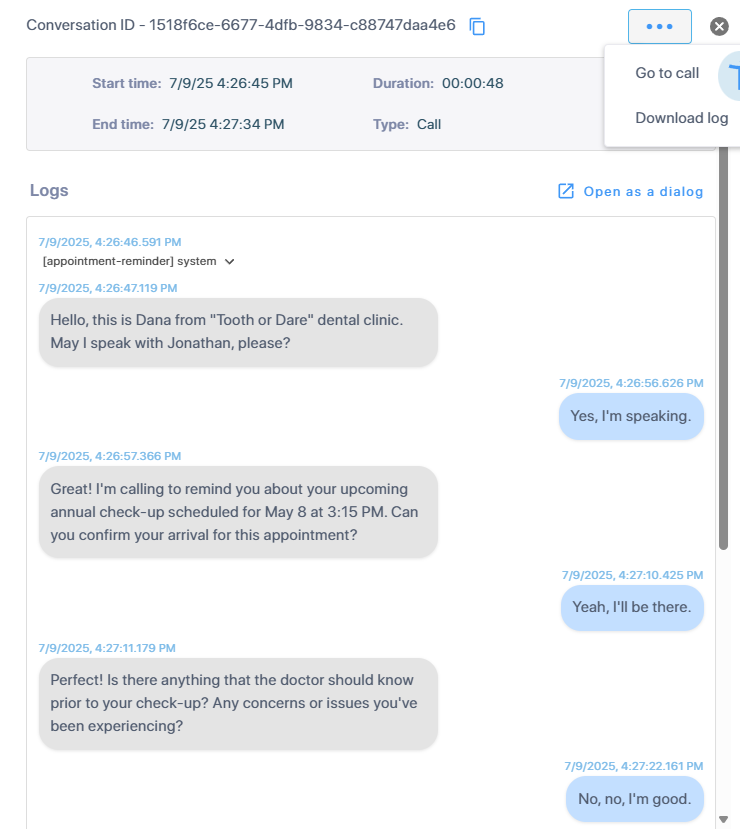
Select a conversation to see detailed logs.
-
Click the ellipses button to view the various actions that can be performed. Select one of the options: Go to call history or Download log.
-
Click Refresh to refresh the page.